How to Change Your Google Account Email on Mobile

Changing your Google Account email can be done directly from your phone. Follow the steps below to access the email settings and check whether your account supports email changes.
Step 1: Open Google Account Settings
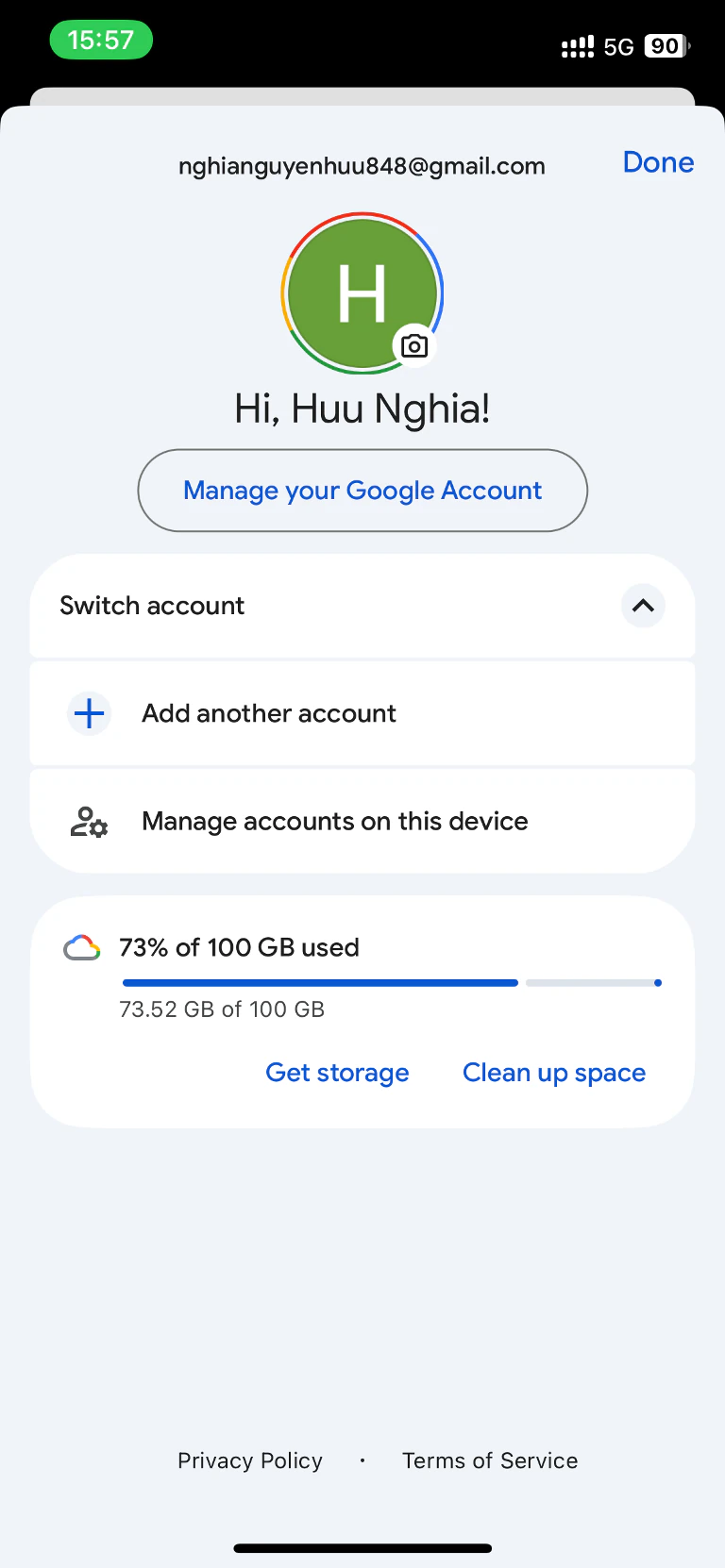
Tap your profile picture and select Manage your Google Account.
Step 2: Go to Personal Info
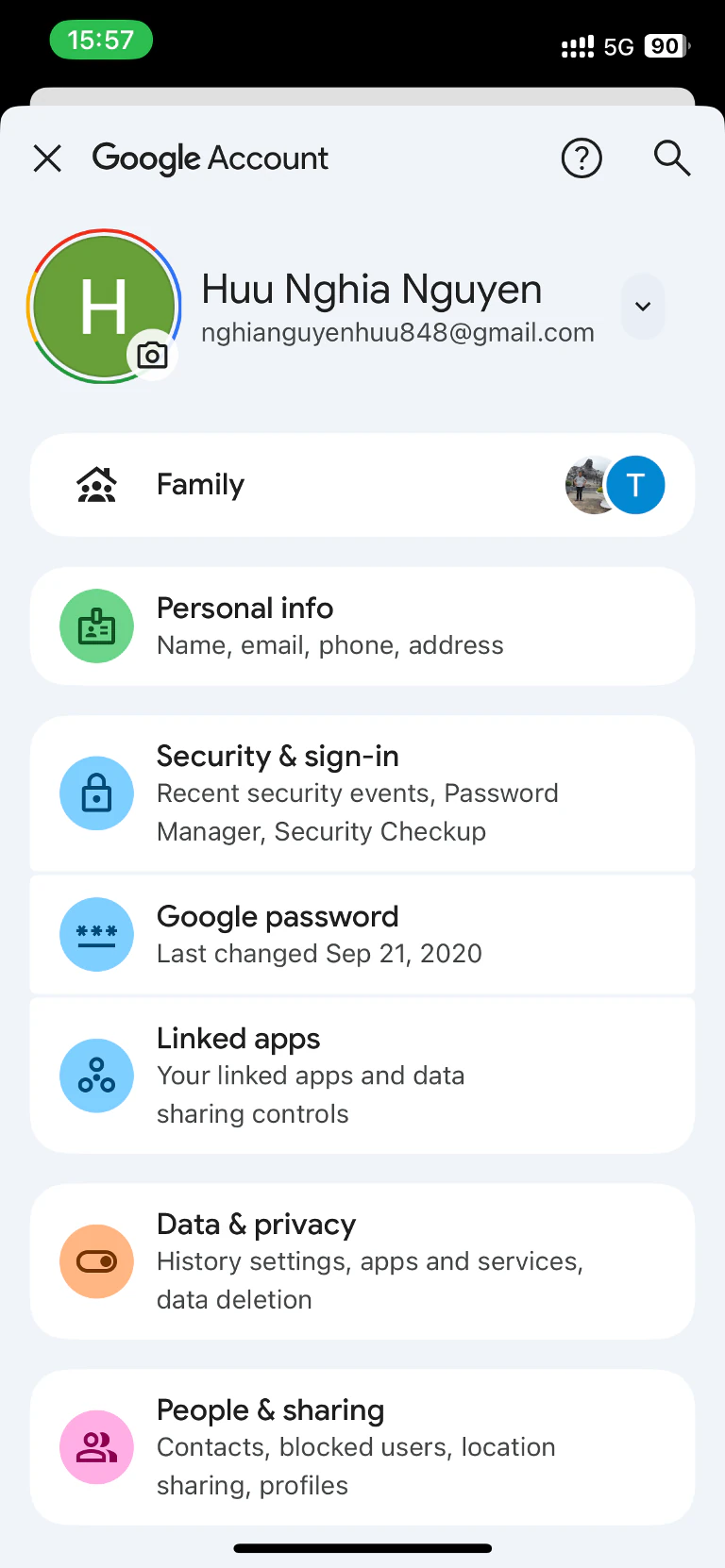
On the Google Account page, tap Personal info.
Step 3: Open Email Settings
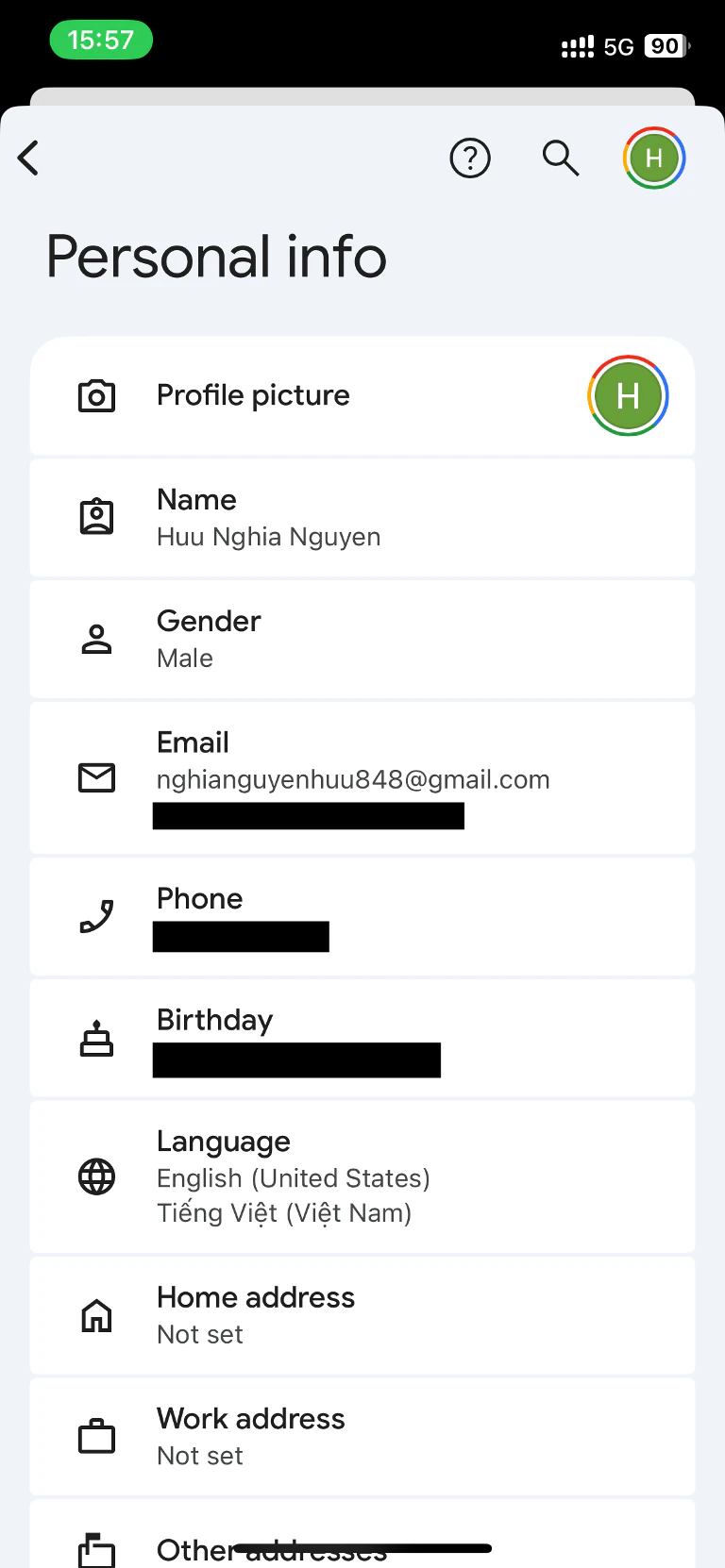
Scroll down and select Email.
Step 4: Select Google Account Email
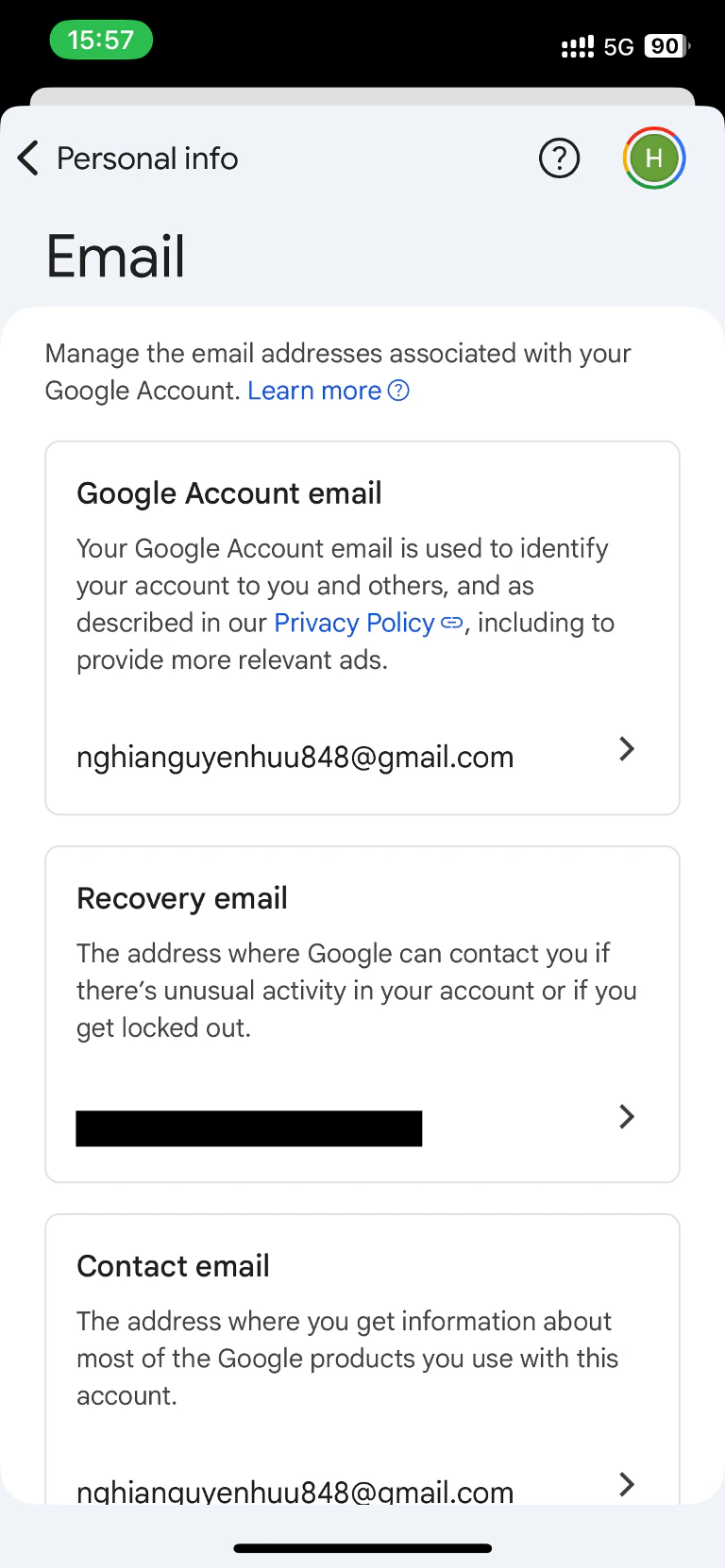
Tap Google Account email to view your primary email address.
Step 5: Change Your Email
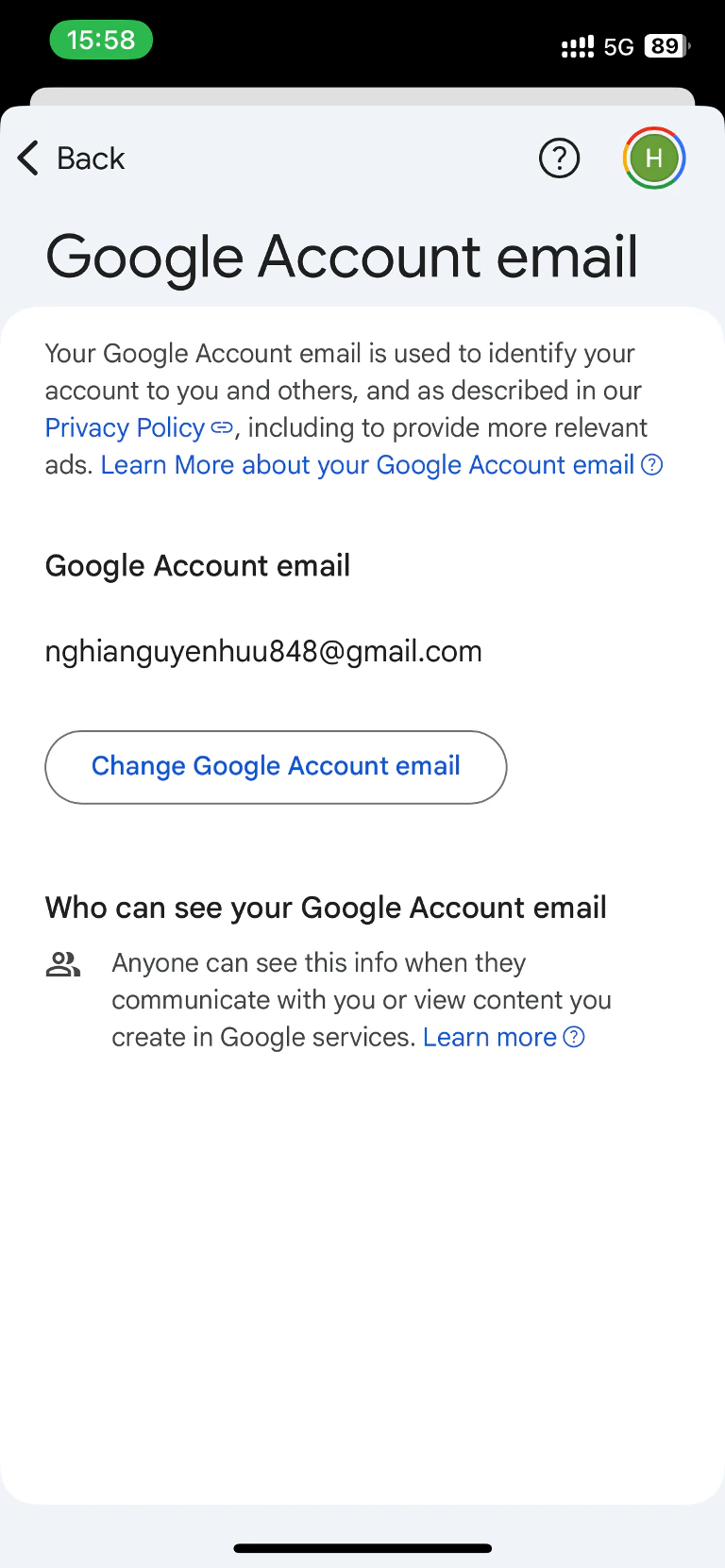
If available, tap Change Google Account email and follow the verification steps.
Step 6: Enter Your New Email Address
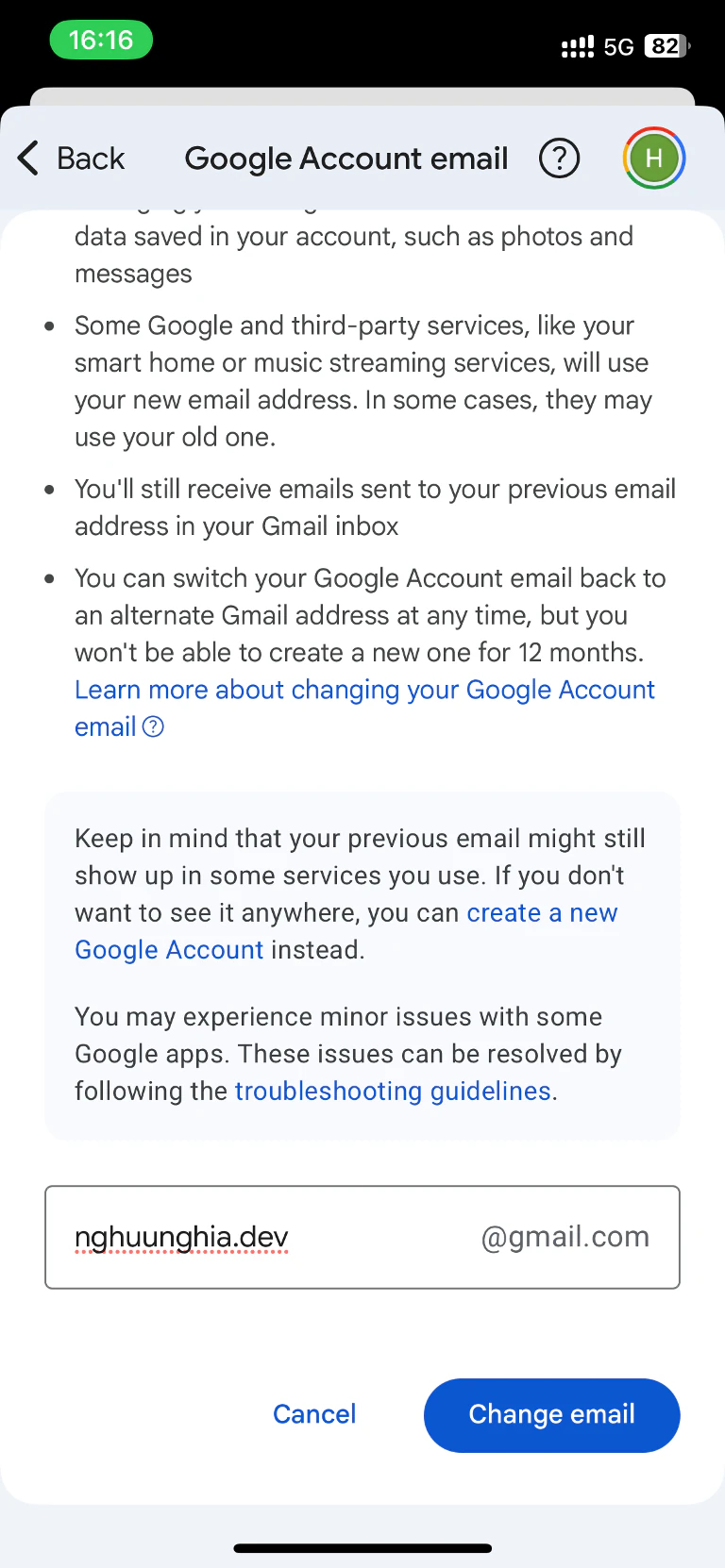
In the input field, type your new Gmail username, then tap Change email.
Step 7: Confirm the Change
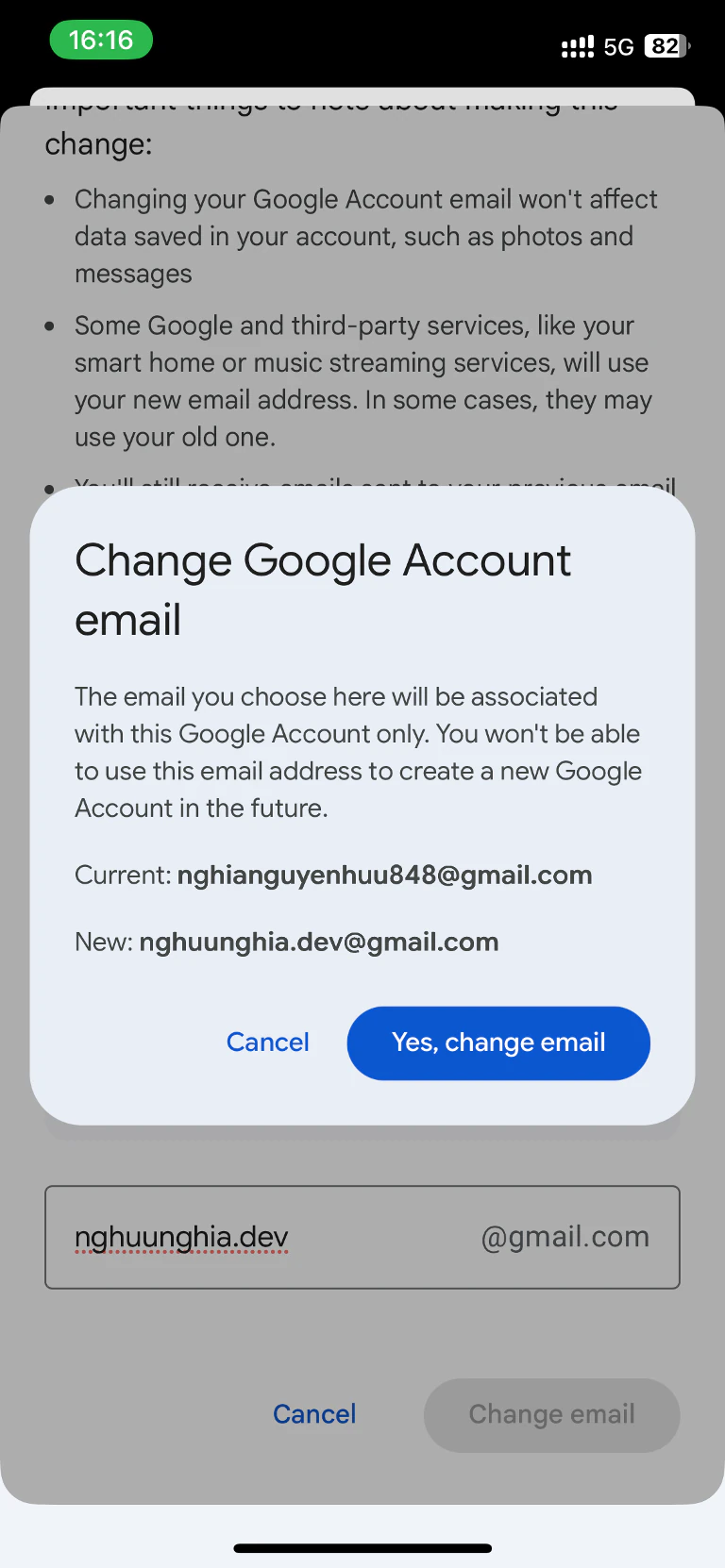
A dialog will appear showing your current and new email. Tap Yes, change email to confirm.
Step 8: Change Successful
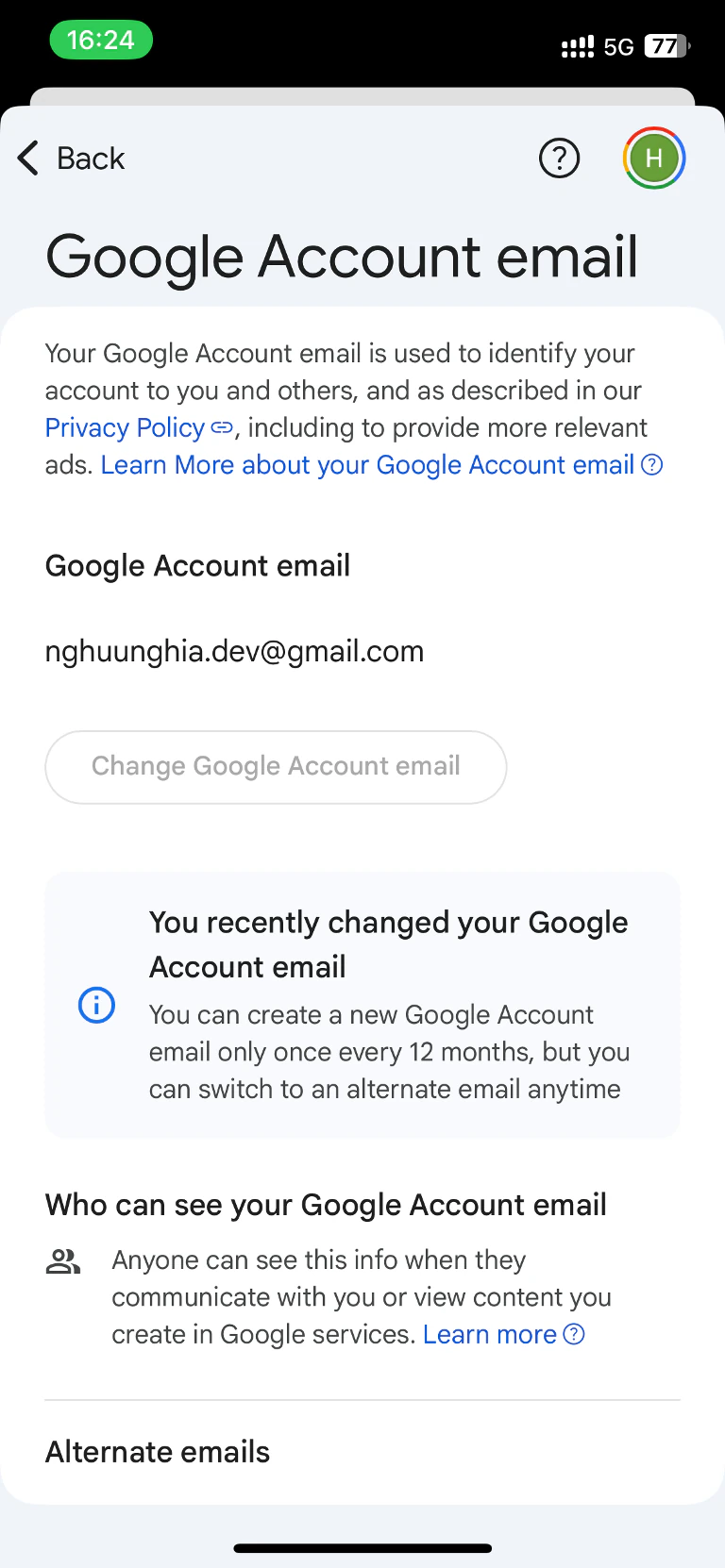
You'll be redirected back with your new email displayed. Note the 12-month cooldown before another change.
Step 9: Verify on Your Profile
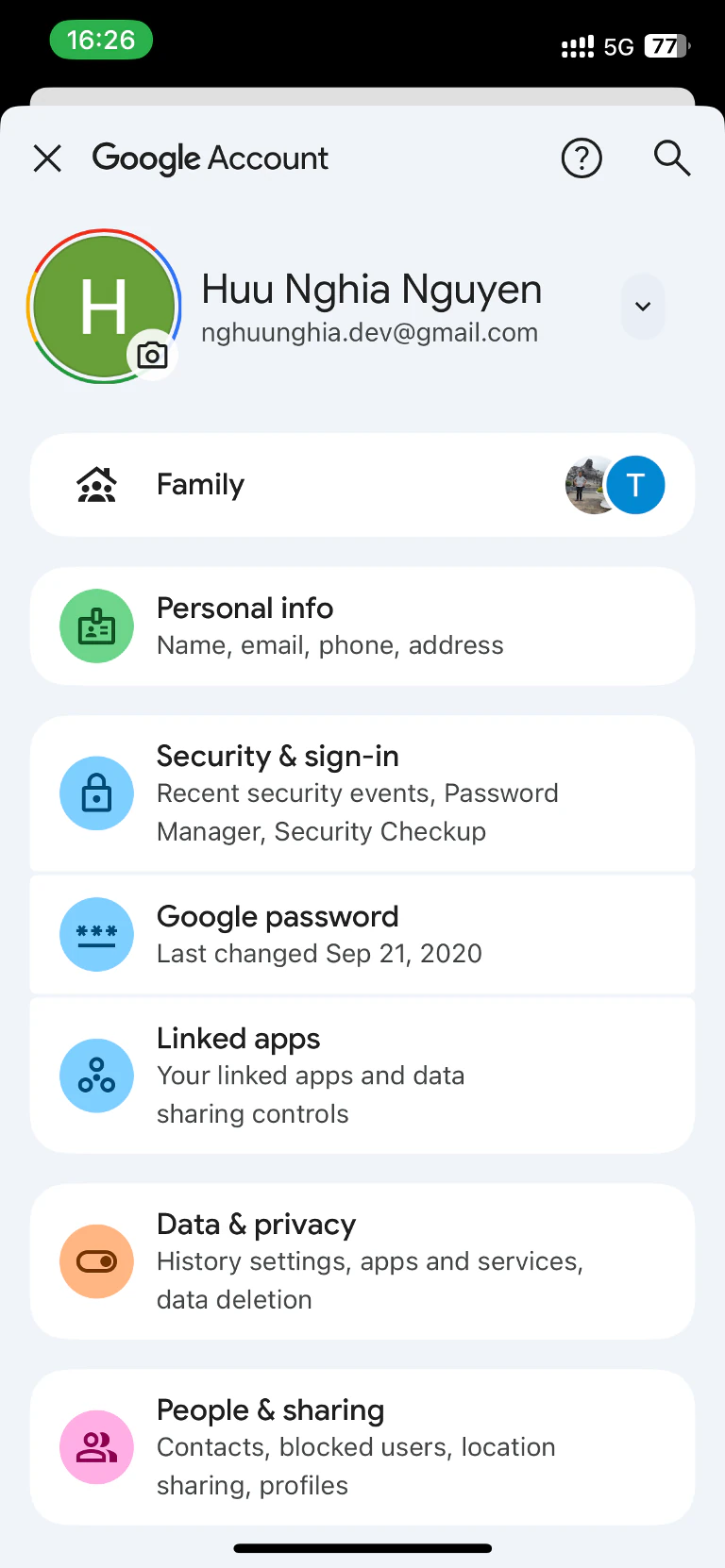
Back on the main Google Account page, your new email nghuunghia.dev@gmail.com is now active.
Final Thoughts
Changing your Google Account email is straightforward if the option is available. Keep in mind the 12-month cooldown before you can create another new one.